Workspace and global settings
Configure preferences, access, providers, engines, services and account sources.
Based on the 3 November 2026 integrated edition · iPolloWork 0.50.33 · Download the complete Chinese PDF or Word manual
Screenshots show the source application in Simplified Chinese. New task, schedule and editor examples use sample data; verify actual saves, connections and outputs in your project.
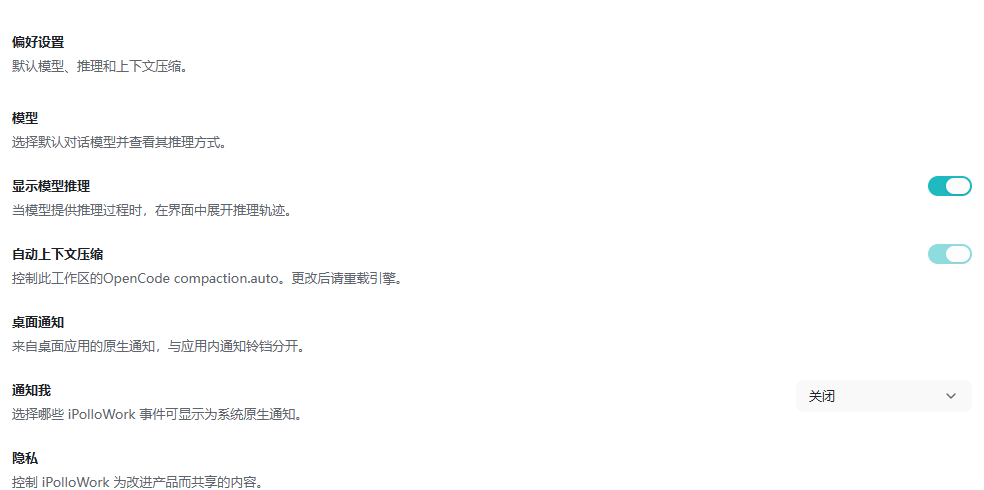
Workspace preferences
Entry: Settings → Preferences.
- Check the default model, reasoning display and context compression. Reload engine-related configuration when prompted.
Completion check: A new task uses the intended preferences.
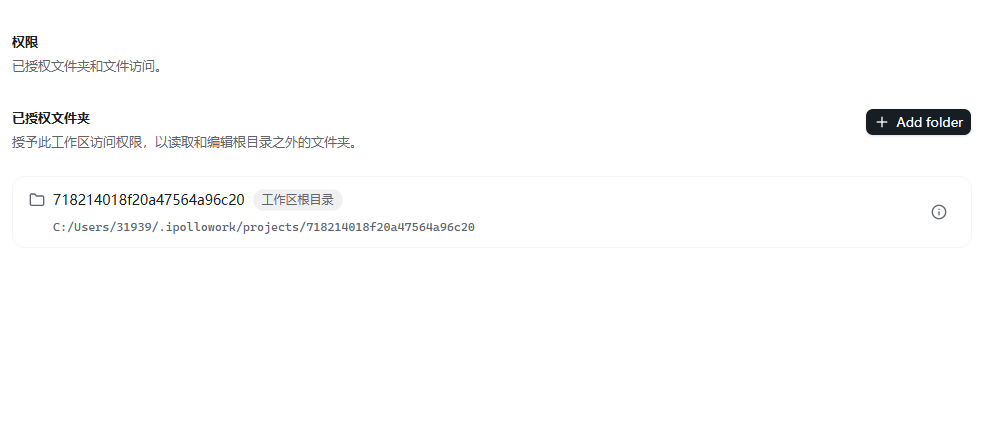
Workspace permissions
Entry: Settings → Permissions.
- Inspect file, command and tool access. Review the target and purpose before approving requests.
Completion check: The task accesses only the required resources.
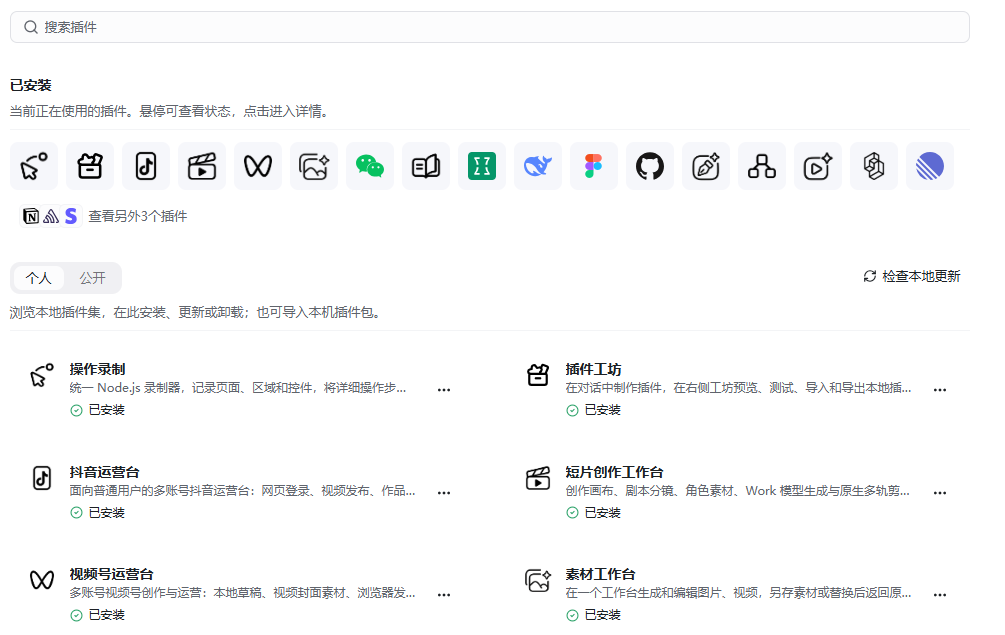
Workspace extensions
Entry: Settings → Extensions.
- Inspect Skills, plugins and MCP installation and scope. Enable required capabilities and reload when prompted.
Completion check: New tasks can discover and call the enabled capability.
Supported AI providers and connections
Entry: Settings → AI providers, and the model selector in the task composer. Providers supply inference; the selected engine executes the task.
| Category | Examples in the reviewed version |
|---|---|
| Main model services | OpenAI, Anthropic, Google, DeepSeek, Qwen / Alibaba, Kimi / Moonshot, MiniMax, StepFun, Zhipu AI. |
| Other models and platforms | Mistral, Cohere, Perplexity, Meta, xAI, Amazon Bedrock, Azure, GitHub Copilot. |
| Aggregators and compatible routes | OpenRouter, OrcaRouter, TokenStar and engine-discovered SiliconFlow, Xiaomi and Tencent entries. |
| Local and specialist connections | iPolloOS, Offcn and engine-supported custom OpenAI-compatible services. |
- Select the execution engine first, then find the provider and inspect its authentication method.
- Connect with the offered API-key or account flow. For custom services, check the full base URL, version path and real model ID.
- Select the connected model in a new task, send a short request and inspect the returned content and provider usage.
- Test tool calls, vision and structured output separately when required. A subscription does not automatically provide API quota.
- Recheck connections and scheduled tasks after changing engines or disconnecting a provider.
Completion check: The intended engine uses a responding model with the required capabilities and quota. Provider names, regions, plans and authentication change with engine discovery and version; this table is an example list, not a permanent compatibility promise.
Connect local Ollama models
- Start Ollama on the intended machine and confirm the service address is reachable from the Work runtime.
- Open the Ollama connection or extension configuration, enter the address and refresh the model list.
- Pull the required model when supported and wait for completion. Select the actual available model in the intended engine.
- Send a short request and test tools or image input separately when required.
Completion check: A real local model responds. A running Ollama service, a downloaded model and an engine-specific connection must each be verified.
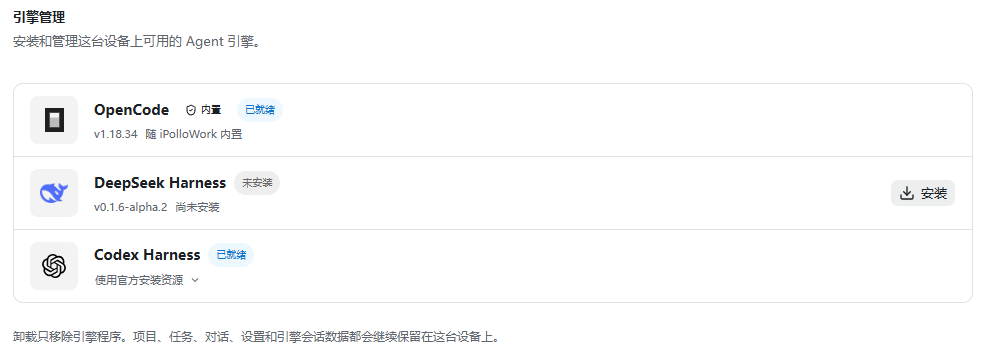
Engine management
Entry: Settings → Engine management.
- Confirm installation and startup, then choose the engine for a new task. Use a matching runtime if a version incompatibility is reported.
Completion check: The task reports the chosen engine and can perform basic file operations.
Authorization center
Entry: Settings → Authorization center.
- Connect media, storage or another integration. Validate the connection before starting a paid or externally writing task.
Completion check: Task outputs can be checked against the service record.
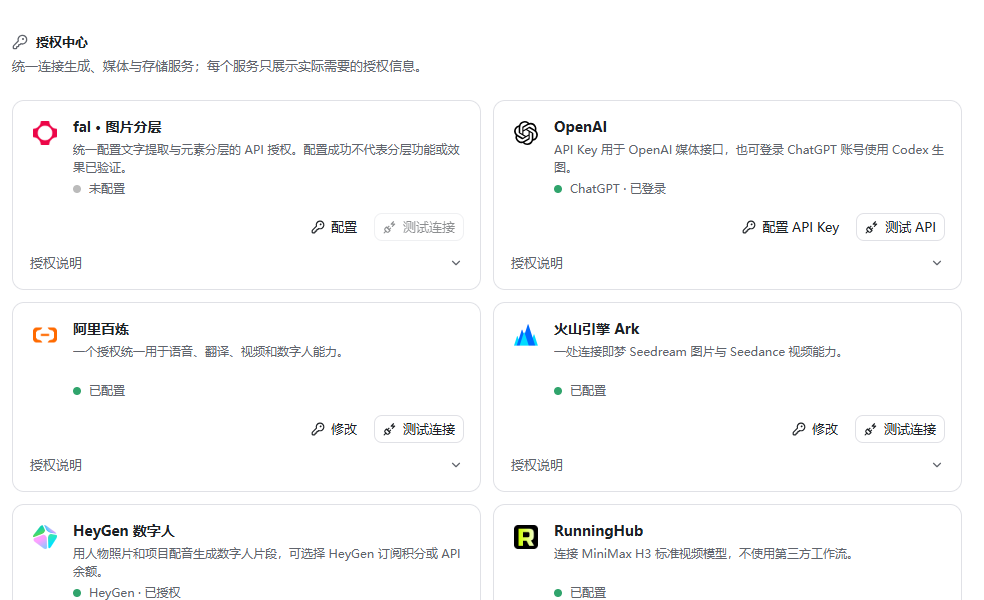
Media services and default storage
- In Authorization center, configure the media route required by the task, such as fal, OpenAI Images, Alibaba Bailian, Volcengine, RunningHub or HeyGen when available.
- Configure OSS or Wasabi with the intended bucket and access scope, then inspect default storage routing.
- Test a small relevant generation or explicit file upload and inspect the provider’s task record and resulting object.
- Recheck workflows that depend on a route before changing or removing it.
Completion check: The task uses the intended service and storage destination. Keep credentials in connection configuration, and verify actual output rather than treating saved settings as a completed job.
Google Workspace accounts and authorization scopes
- Open the Google Workspace connection and confirm the active Google account. Select the optional capabilities actually needed, such as Gmail reading, Drive access, Calendar writing or Chat.
- Complete authorization and inspect the granted scope. Use the connection test to check connectivity.
- Inspect a scope smoke test before running it: the current flow can create a Drive file and a Gmail draft. Confirm the account and intended test effects.
- For real operations, check the target message, file, calendar or conversation and the requested action before writing. Review the actual result, then revoke unnecessary access when finished.
Completion check: The right account has the required scope and the requested operation succeeds. Connectivity testing and capability testing have different effects.
Customization
Entry: Settings → Customization. This page controls brand display and interface layout.
- Inspect the available controls. The application name is read-only here. Where Logo upload is enabled, use PNG, JPEG or WebP up to 1 MB.
- Adjust the available sidebar, notification-entry and starter-card switches. Windows and Linux can also expose the system-menu setting.
- Check the resulting interface. The current model-selector and browser-layout switches are unavailable.
- Restore defaults only when intending to reset this page’s interface configuration. Configure system notification scope separately in Preferences.
Completion check: The supported display settings take effect in the interface.
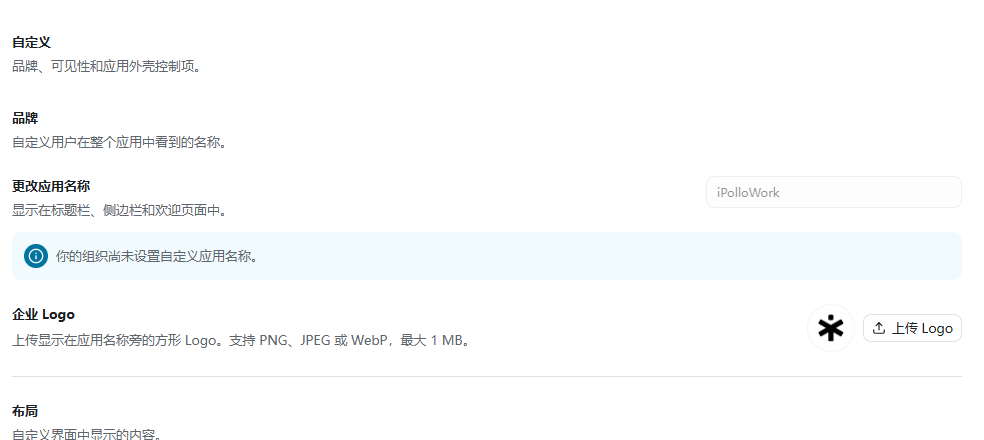
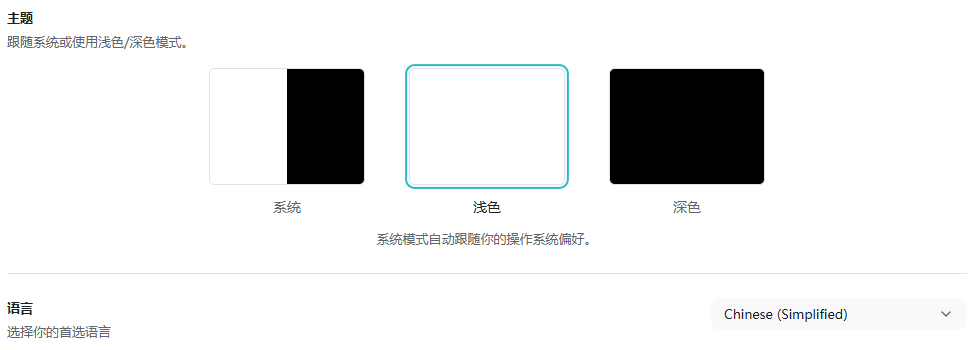
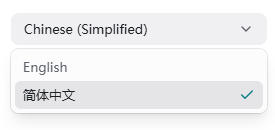
Languages, appearance and artwork themes
- Open Appearance and select Light, Dark or System. Check readability in the sidebar, conversation and right panel.
- Use the language selector; the reviewed settings page offers Simplified Chinese and English. Check navigation and commonly used features after switching.
- Change artwork colors and fonts through Design’s design system or template theme, and review all pages independently of application appearance.
- If your desktop version offers native-title-bar options, inspect window dragging and controls after changing them.
Completion check: Language and application appearance take effect, and artwork themes are saved through their own controls. Other translation resources in source do not mean all languages are selectable in the current settings page.
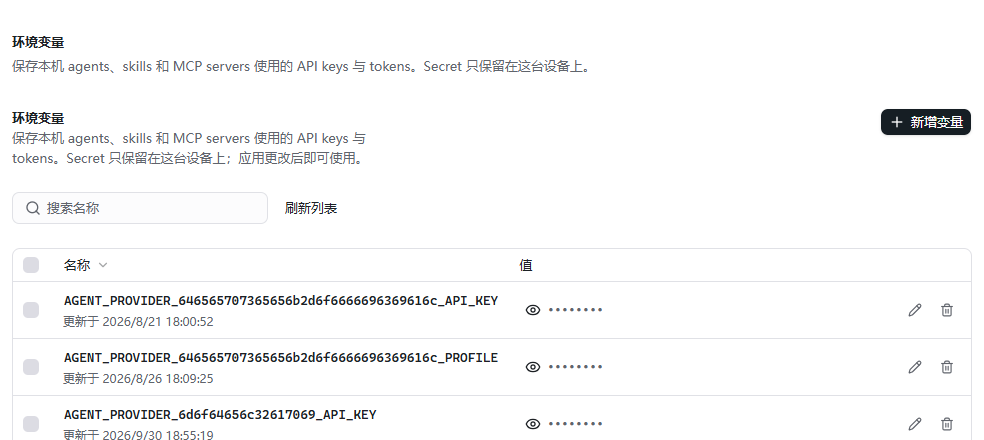
Environment variables
Entry: Settings → Environment variables.
- Set the required names and values with the intended scope. Restart the affected runtime or task environment after changes.
Completion check: Tools can read the variables and exports contain no credentials.
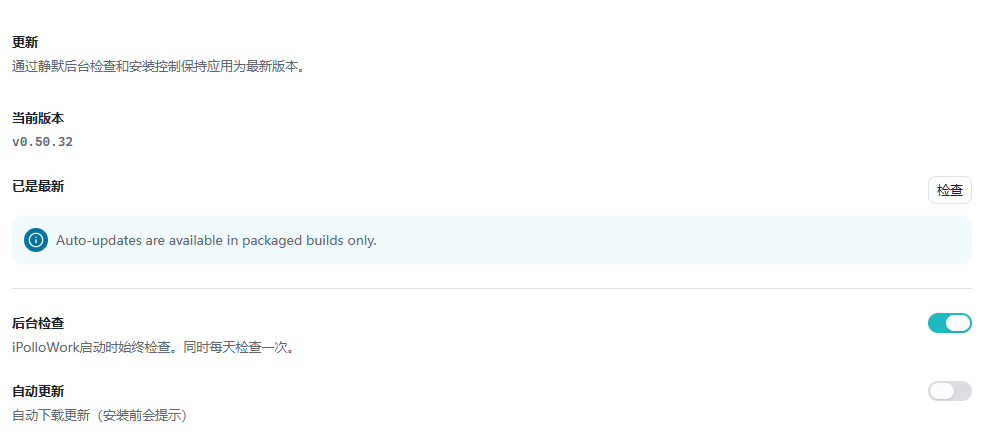
Updates
Entry: Settings → Updates.
- Read the release notes and save current tasks and artifacts. After updating, check the engine, plugins and one common task.
Completion check: The expected client version opens the original projects and outputs.
Recovery
Entry: Settings → Recovery.
- Read the exact recovery scope, back up important files and preserve task evidence before choosing an action.
Completion check: The issue is resolved and needed data remains recoverable.

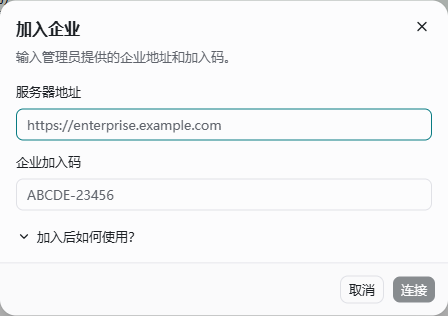
Accounts and enterprise sources
Entry: Account entry and enterprise joining action.
- Sign in with the intended account, obtain the enterprise URL and join code from the administrator, and select the enterprise source.
Completion check: The expected enterprise and authorized resources are visible.
Advanced settings and diagnostics
- Record the software version, current project and error before opening Advanced settings to inspect local service and connection states.
- Refresh runtime-configuration diagnostics and check configuration sources, current paths and loaded state.
- After changing environment variables or engine configuration, reload the affected runtime as prompted and run a small verification task.
- Use debug or developer options with maintenance guidance. Remove tokens, keys and private business content before sharing logs or screenshots.
- Read the exact recovery scope and back up important projects before resetting, then recheck projects and connections.
Completion check: Diagnostics identify the relevant service or configuration boundary. Reconnect, reload and recovery actions have different scopes and do not replace backups.
Next: continue reading, or browse the complete feature index.