Start and manage tasks
Prepare a model, create projects, choose an engine and review real task results.
Based on the 3 November 2026 integrated edition · iPolloWork 0.50.33 · Download the complete Chinese PDF or Word manual
Screenshots show the source application in Simplified Chinese. New task, schedule and editor examples use sample data; verify actual saves, connections and outputs in your project.
Start and connect a model
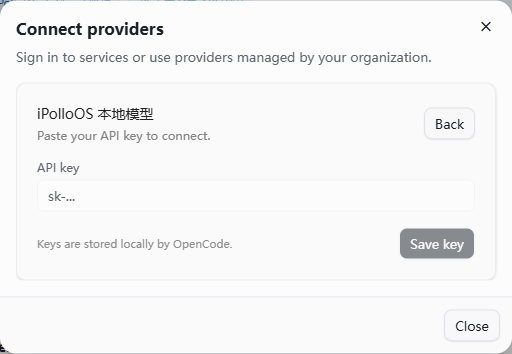
Open Settings → Engine management and AI providers.
-
Install and start the intended engine, following first-run prompts.
-
Connect a supported provider or enter your service URL, credential and actual model ID. Select the model in the task composer.
-
Send a short test request and wait for a real reply. Check the key, URL and model name if authentication or discovery fails.
Completion check: A selectable model returns content. Accounts and model authorization are specific to their engine and provider.
Create a project and keep the task
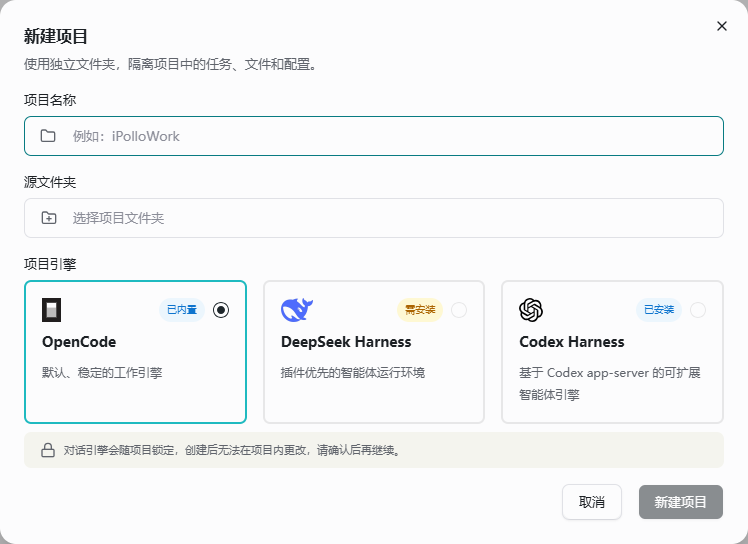
Use the plus action in the project area and prepare a writable local directory.
-
Enter a project name, source directory and default engine. Add reference files to the directory or attach them.
-
Use the plus action under the project to start a task. State the goal, inputs, constraints and output format.
-
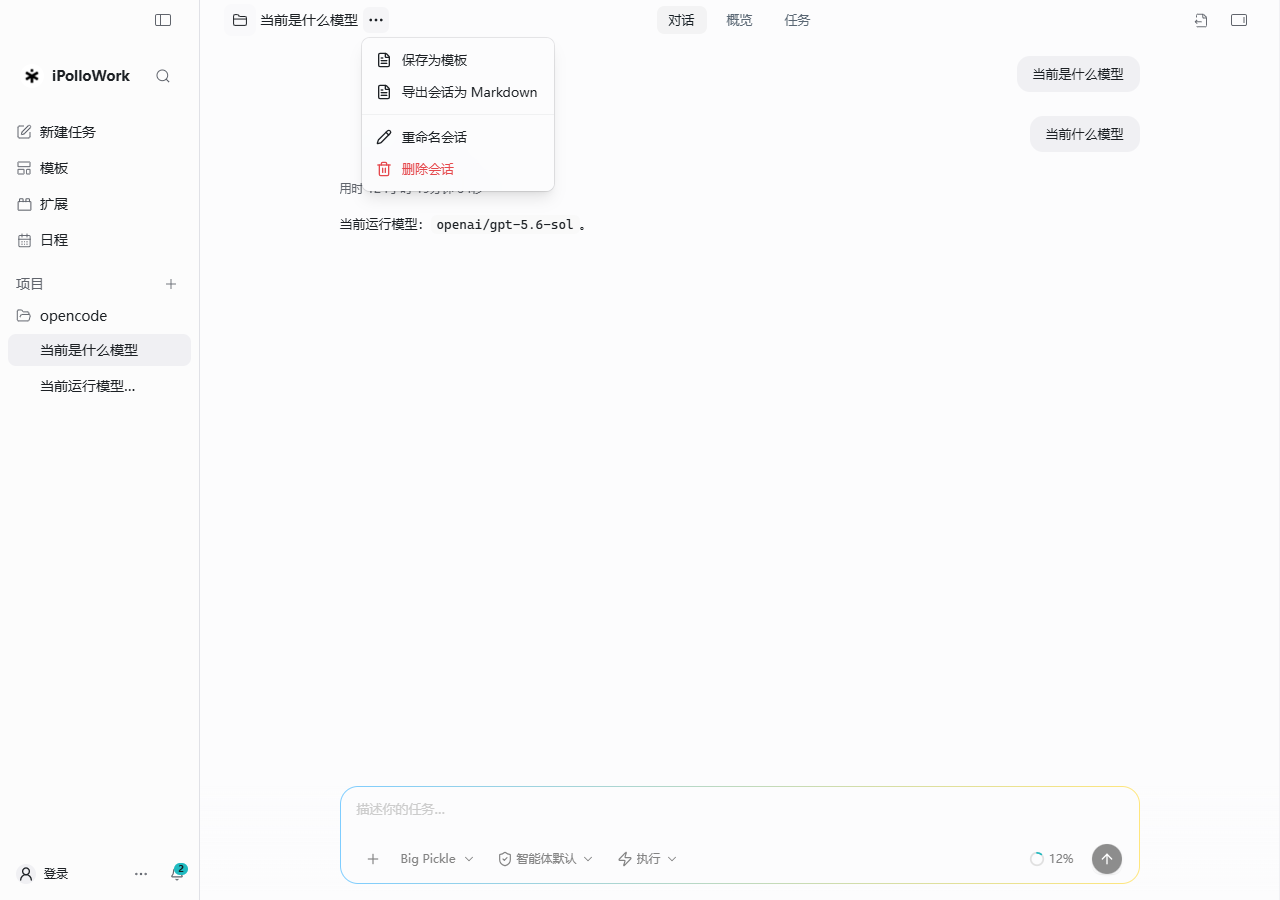
Reopen the same task for revisions. Rename, pin or archive it from the task menu.
Completion check: The task appears under the correct project and outputs are saved in the intended folder.
Work templates and multiple engines
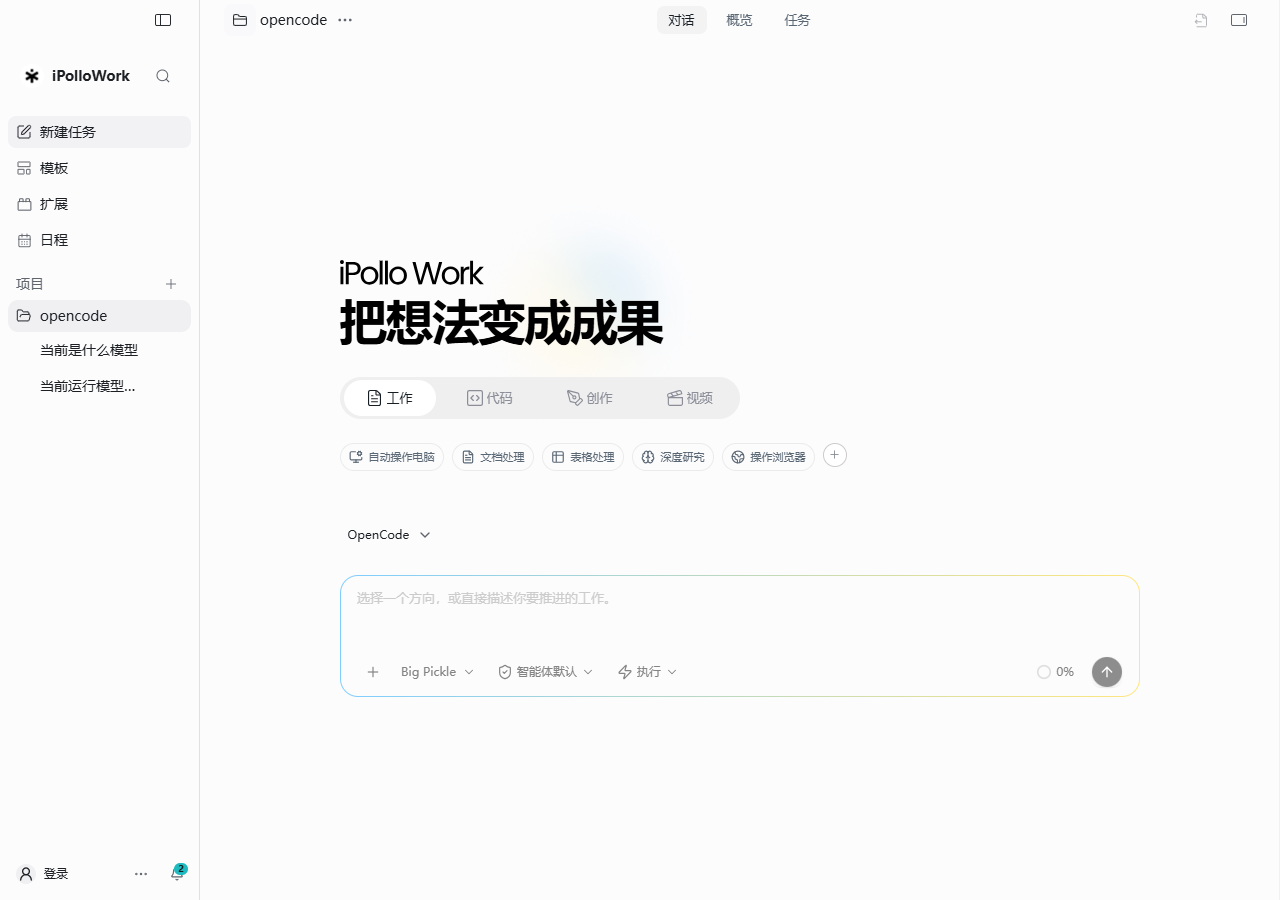
Select a work mode and engine before describing the outcome.
-
Choose the engine and an automatic, general, development, research, document or existing work template.
-
If work needs delegation, state roles and boundaries. Inspect actual delegation records and work items.
-
Review stages and outputs before acceptance. To change the execution engine, start a new task and hand over relevant context.
Completion check: The task uses the chosen template snapshot. Template role count does not establish a fixed number of concurrent agents.
Steer execution and review approvals
Use the current conversation and its question or permission panels.
-
Send additional constraints while the task runs. Use Stop, or press Esc twice within the prompted interval, when needed.
-
Review the target and scope before answering a question or granting permission. Adjust project access if requested.
-
Inspect actual files and behavior, request concrete changes and accept the result when your completion conditions are met.
Completion check: Execution continues or clearly stops; a final model response alone does not prove successful delivery.
Manage queued messages and steer the current task
Entry: The queued-message panel in a running conversation.
- Review messages waiting to be sent and edit or remove an item before it is consumed.
- Use the available steer action when a message should guide the current run; check its actual delivery state.
- After pausing execution, review the remaining queue and use Continue when ready.
Completion check: The queue and conversation agree about which instructions were sent, removed or remain pending. Removing a queued item does not undo an action already performed.

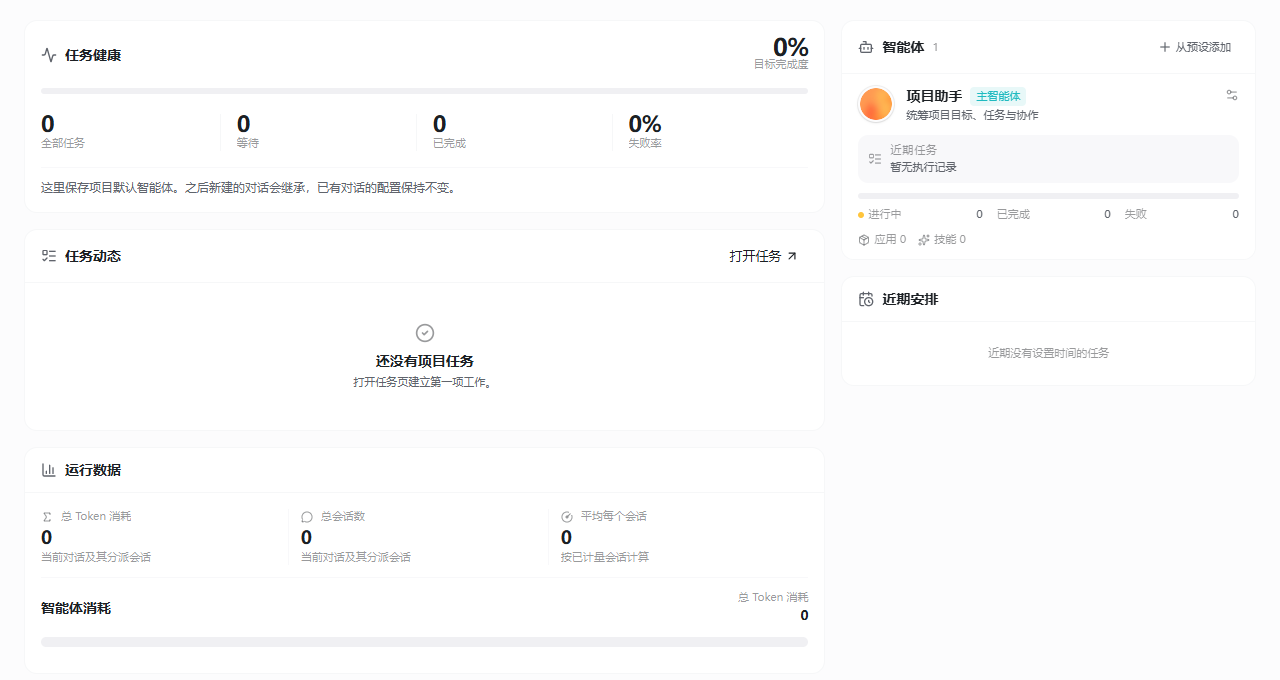
Project overview
Entry: Open the project or the project overview above the current task.
- Check the project or conversation scope before reading total, waiting, completed and failed task metrics.
- Open a task from recent activity to inspect its list entry or execution record.
- Inspect agent responsibilities, recent tasks and usage. Maintain the project’s default agents and capabilities as needed.
- Compare upcoming start and due times with actual outputs before acceptance.
Completion check: Metrics, tasks and run records belong to the intended project. Project defaults are inherited by new conversations; existing conversations retain their own configuration. Declared roles do not guarantee a fixed number of concurrent agents.
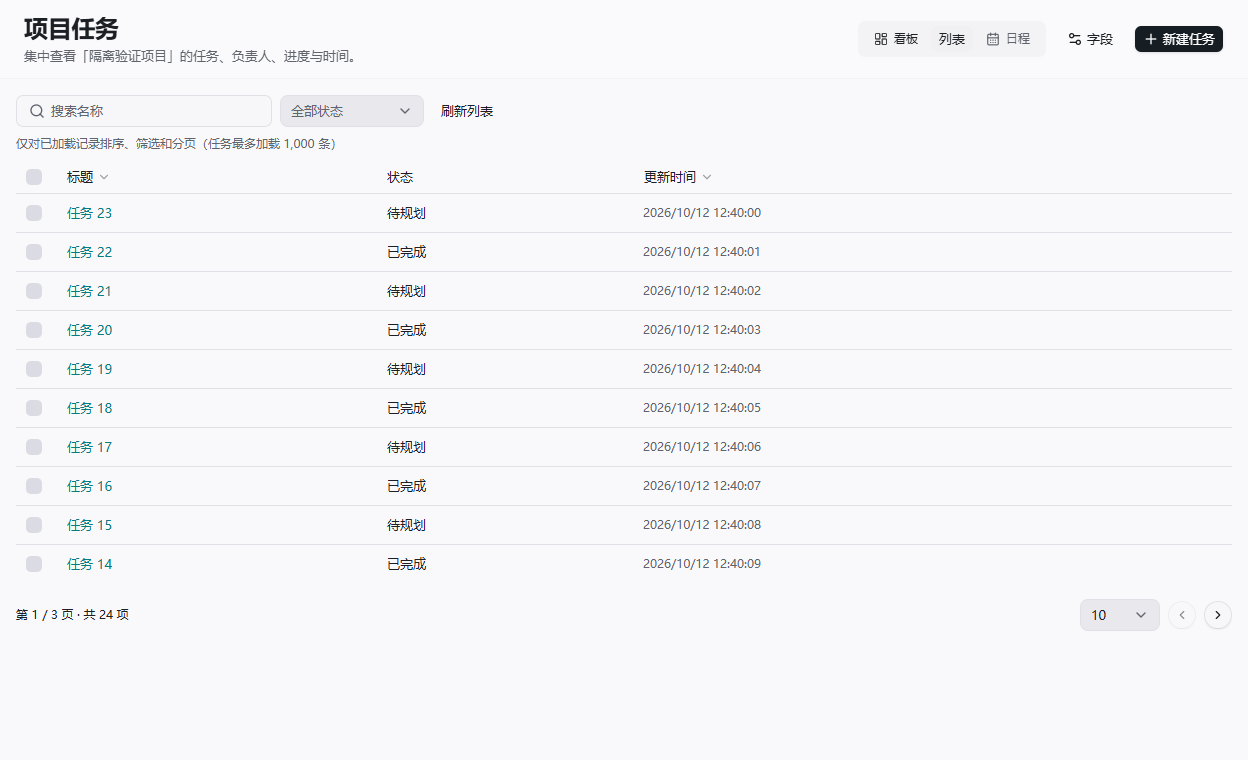
Task lists and batch management
Entry: Switch the task view to List.
- Filter by task name and status; clear filters when returning to all tasks.
- Sort by name or update time and use page size and pagination for loaded records.
- Select editable planned tasks on the current page, choose a status and review the task count before saving.
- Read partial-failure results and retry only failed items. Refresh and inspect the current status after a version conflict.
Completion check: Filters match the intended records and batch results distinguish successes from failures. Search and sorting apply to loaded records. Filter changes clear selection; runtime-managed or execution-linked tasks may be read-only.
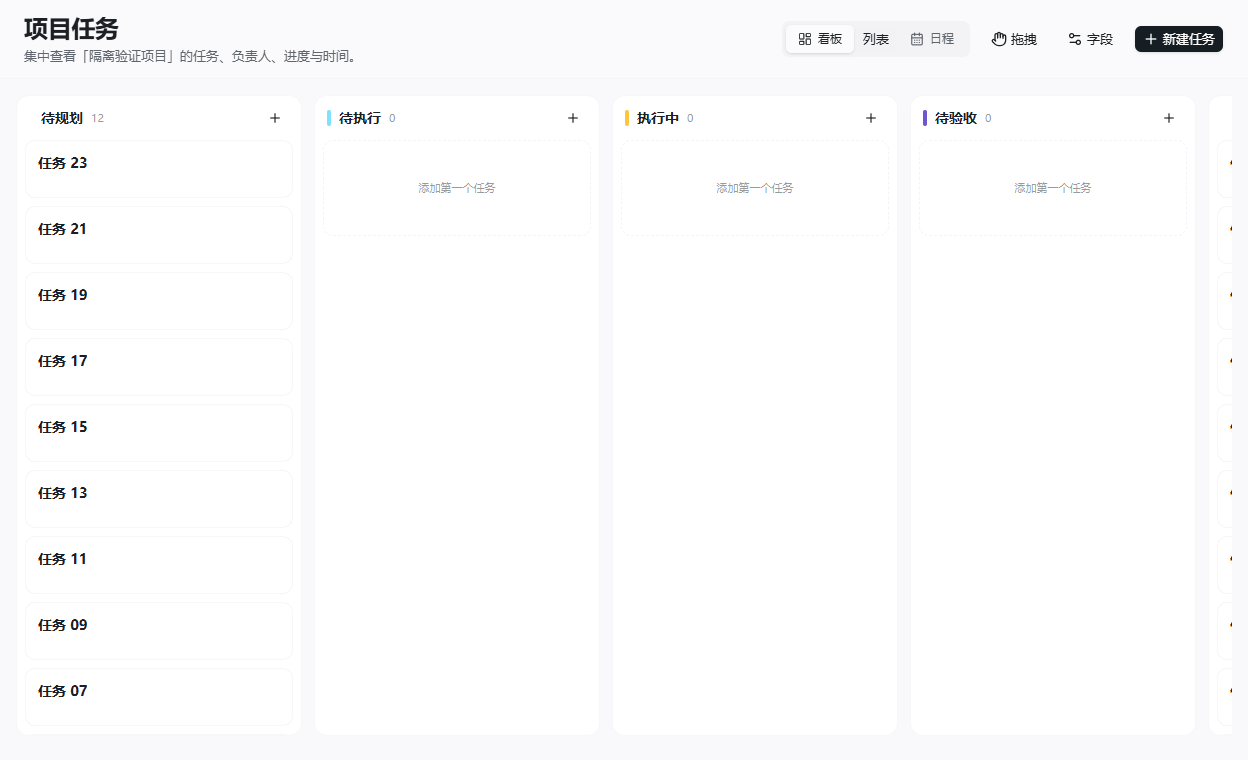
Boards, fields and project responsibilities
Entry: The board and field controls in the task view, and agent settings in Project overview.
- Create a task with its title, description, status, priority and owner.
- Configure status columns and custom fields for the project, then check existing records.
- Organize planned tasks through the available drag or status controls; pan larger boards as needed.
- Check agent roles, execution engines and linked plugins or Skills before running work.
Completion check: Board, list and schedule views describe the same tasks. Planned responsibility and actual runtime execution are distinct; changing a default role does not rewrite an existing conversation.
Conversation history, search and notifications
- Rename, pin or archive a conversation from its menu so that ongoing work remains easy to find.
- Use Ctrl/Cmd + F within a conversation, or Ctrl/Cmd + Shift + F across conversations, and open the matching message.
- Export the conversation as Markdown when needed. Use the supported engine-history recovery path only after checking the source engine and target project.
- Configure application and system notifications in Preferences, and check operating-system permission separately.
Completion check: You can reopen the intended history, read its export and trace messages to the correct task. Notification delivery depends on the client, system permission and current settings.
Edit messages, branch conversations and revert
- Open a message’s actions to copy content or use the available edit action. Review the changed request before continuing.
- Branch from a historical message when exploring a different direction, and check which conversation is now active.
- Before reverting, inspect the affected messages and file changes. Reopen relevant files and repeat the necessary checks afterward.
Completion check: The active branch and retained history are clear. Conversation revert is not a universal undo for filesystem changes or actions in external services.
Next: continue reading, or browse the complete feature index.