Create and check deliverables
Practical steps for code, documents, websites, presentations and video.
Based on the 3 November 2026 integrated edition · iPolloWork 0.50.33 · Download the complete Chinese PDF or Word manual
Screenshots show the source application in Simplified Chinese. New task, schedule and editor examples use sample data; verify actual saves, connections and outputs in your project.
Code development and debugging
Choose a code task in a project containing the actual source.
-
Describe the behavior, reproduction steps and expected result.
-
Ask the agent to read the existing implementation before editing. Handle terminal and command permissions when prompted.
-
Inspect changed files, runtime behavior and relevant checks. Specify a deployment target separately if publication is required.
Completion check: The reported failure path works and code changes have inspectable evidence. Generated code still needs deployment acceptance.
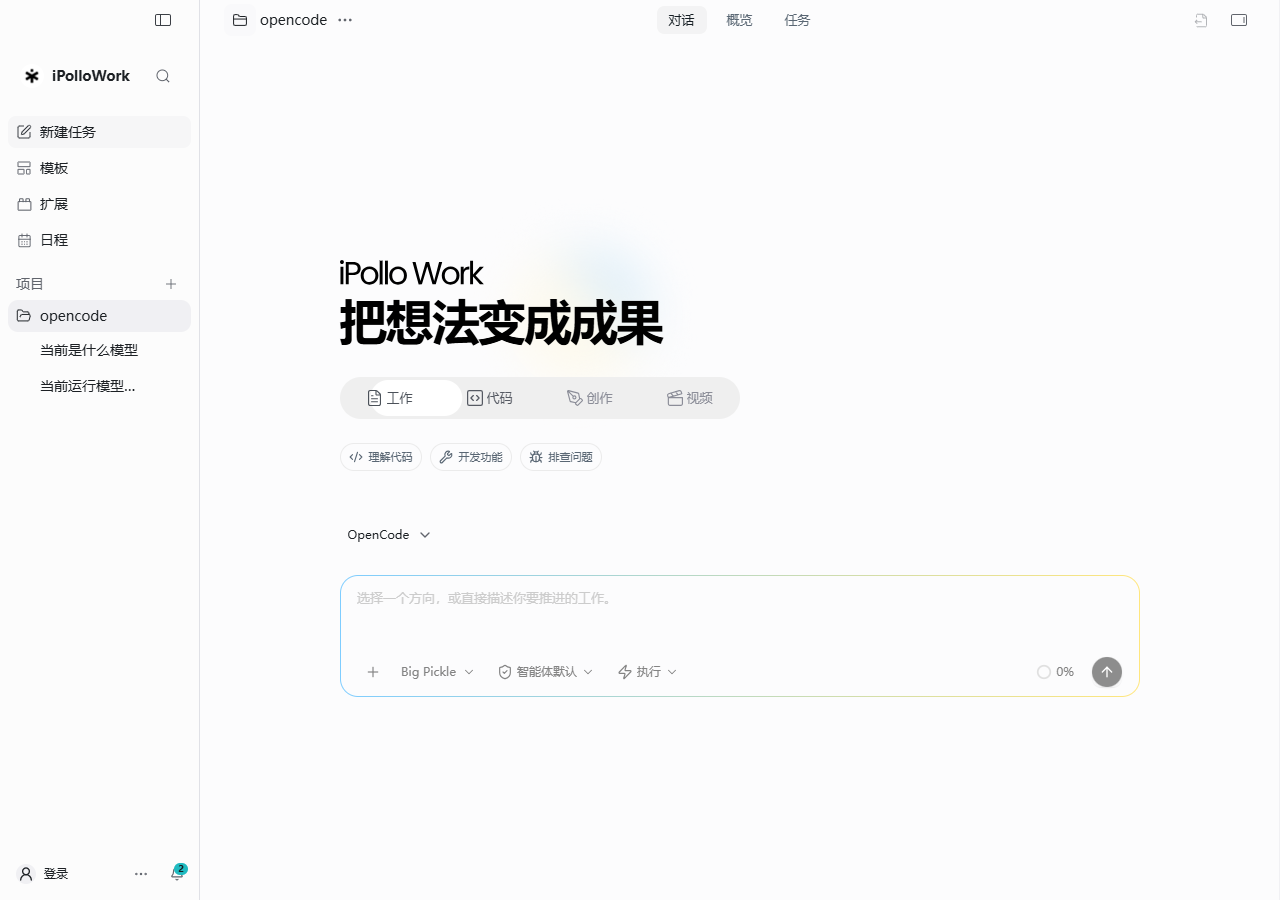
Local terminal and change acceptance
Entry: The local terminal panel, available through Ctrl/Cmd + J in the desktop client.
- Check the current project directory and command before execution.
- Read command output and the process exit state. Inspect the actual file differences and relevant validation results.
- Preserve enough context to reproduce a failure and stop processes that are no longer needed.
Completion check: Commands ran in the intended local project and the resulting changes are inspectable. This terminal path is desktop-local; remote terminal support is not established by a remote workspace connection.
Documents, spreadsheets and research
Prepare source files and any required service connections.
-
Attach material and specify Word, spreadsheet or another required format, reader, structure, length and citations.
-
Describe the transformation: extract key points, merge by fields or add usage steps. Enable research tools if needed.
-
Open the real output file and inspect content, formulas, layout and references before requesting revisions.
Completion check: The requested file opens correctly and required calculations and layout work. Format support depends on configured tools.
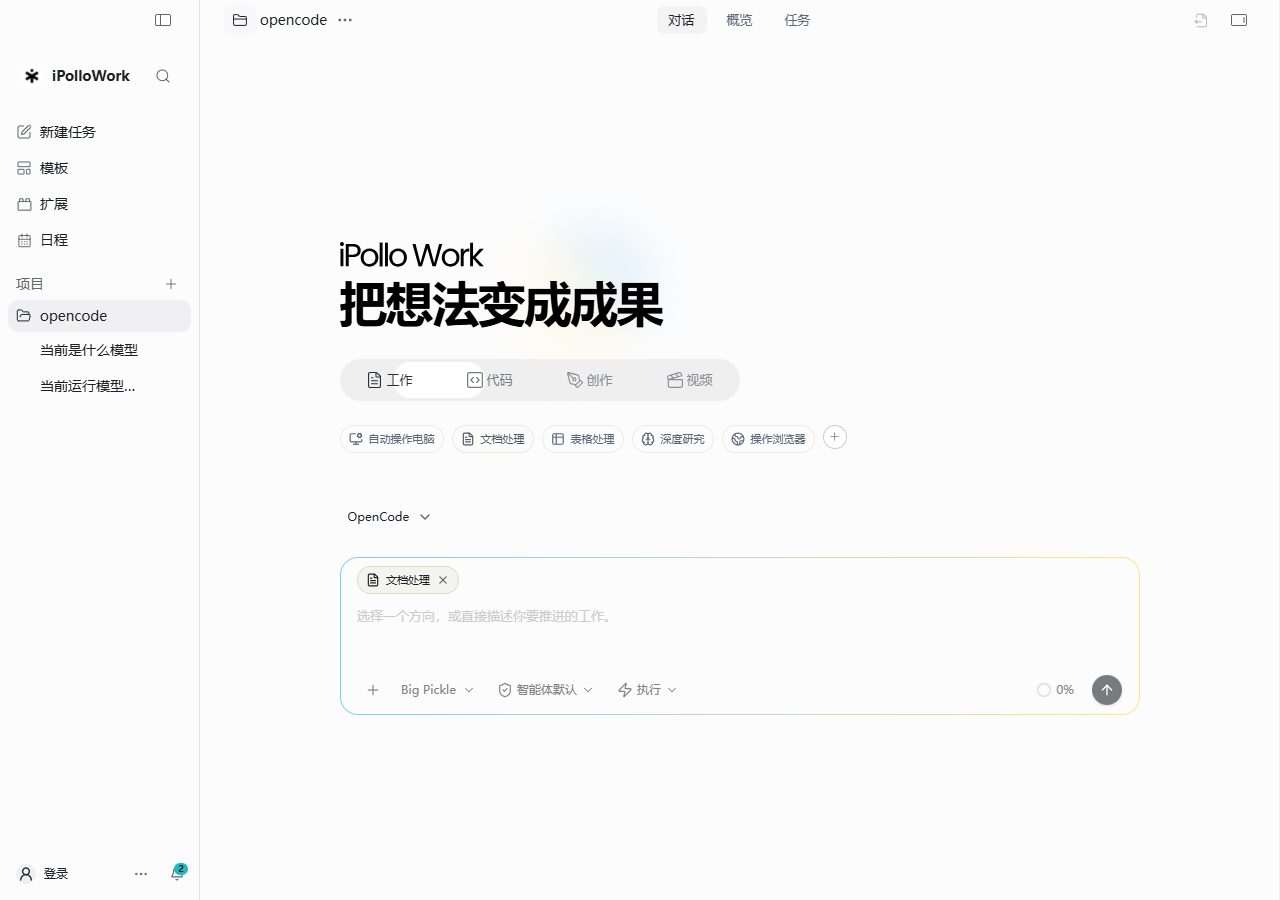
Websites, designs and presentations
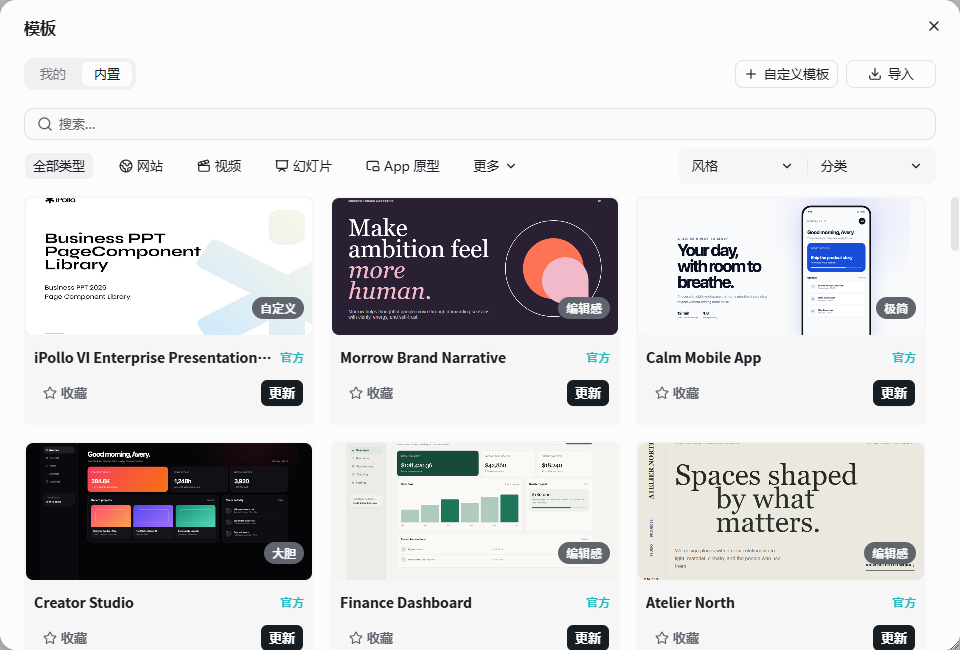
Choose a creation task or template. Design is available to local projects.
-
Choose a website, slide, poster, card or report template and supply the topic, audience, references and brand requirements.
-
Inspect the Design preview. Select text or regions to edit, or request changes in the same task.
-
Check page and slide order, then export using the supported format. Open PPTX exports to verify editability when required.
Completion check: Layout and text remain editable and the export opens in the target application. Design is currently unavailable for remote projects.
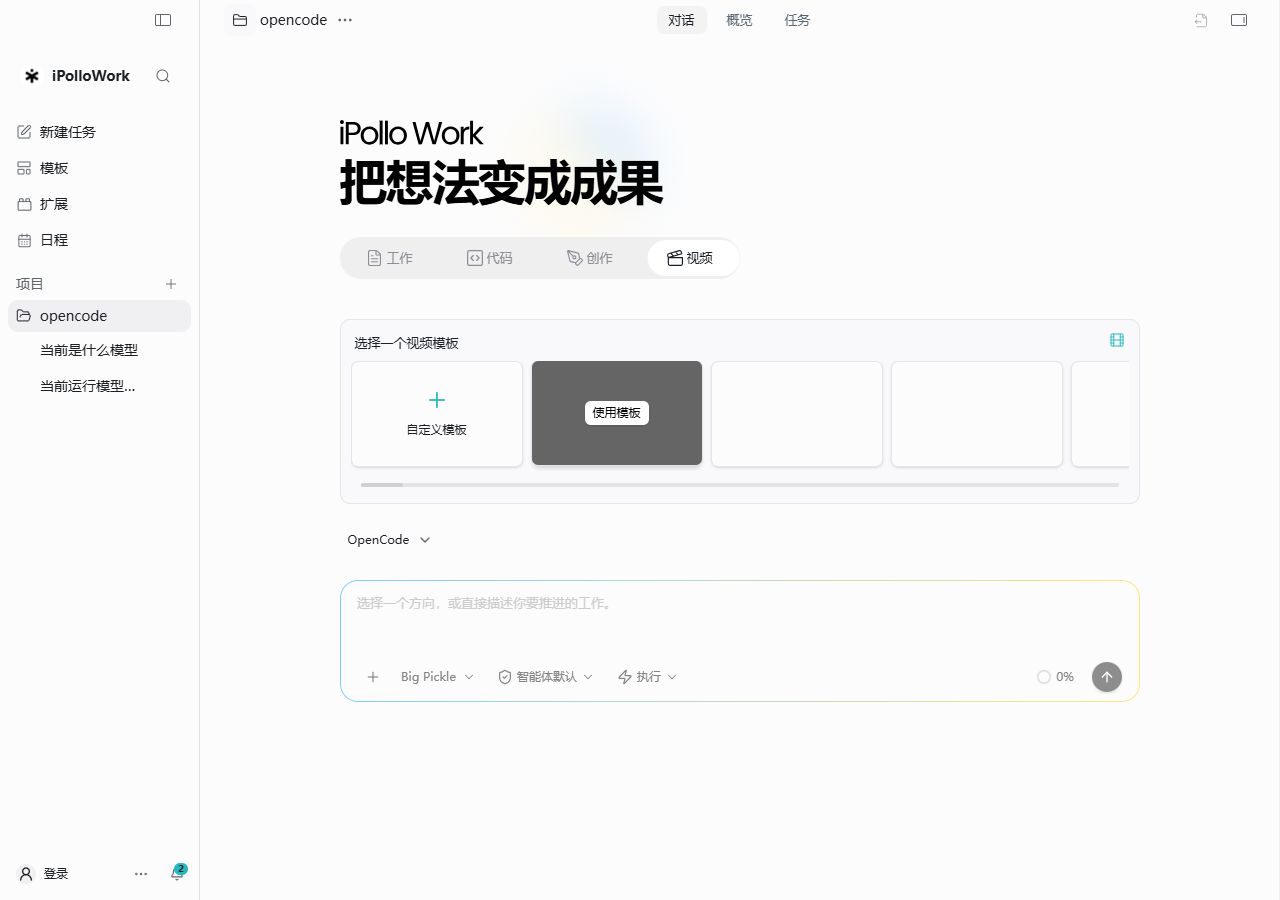
Video and voiceover
Use a video task and Video Studio. Connect media services for voice generation.
-
Specify topic, duration, aspect ratio, assets, subtitles and whether narration is needed.
-
Preview scenes and the timeline. Adjust text, imagery, sound and pacing; provide suitable samples when using voice replication.
-
Play the complete sequence, check captions and synchronization, render and open the actual video file. Export again after edits.
Completion check: The project stays editable and the final video plays correctly. Asset generation and compositing/rendering are separate jobs.
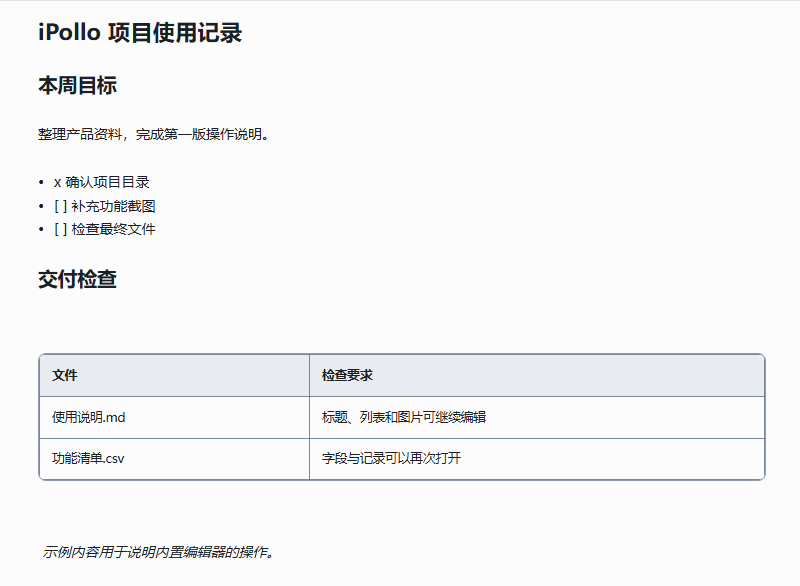
Edit Markdown directly
Entry: Open an .md, .markdown or .mdx file from Files, outputs or a message link.
- Click into the document and edit text directly. Use Markdown syntax, the slash menu for blocks and the floating toolbar for selected text.
- Add headings, lists, quotes, code blocks, images, links, tables or task lists. Check actual image paths and access.
- Pause briefly and inspect the autosave state. Preserve your draft on failure; compare file versions before resolving an external-change conflict.
- Download Markdown or PDF, then reopen the result to check images, tables and pagination.
Completion check: Saved content survives closing and reopening. PDF export supports reading and sharing; complex Word layouts require separate inspection.
View and edit spreadsheets
Entry: Open a supported CSV, TSV, XLSX, XLS or ODS file from Files or outputs.
- Keep an original copy and inspect imported field names and records.
- Edit cell text or values and add rows or columns as needed. Check headers and empty values.
- Save and wait for completion, or discard the current modifications. Reopen the actual file and check the data in the target spreadsheet application.
Completion check: Fields and records are saved correctly. The built-in workflow reads the first worksheet and regenerates visible data; it does not promise lossless preservation of multiple sheets, formulas, formatting, charts, macros or complex merged cells.

Text, HTML, PDF and Office files
- Decide whether the task needs reading, direct editing, AI revision or conversion. Open files from the file panel, output list or a real file link.
- Edit text, code, JSON, YAML and styles through the available editor, preserving syntax and encoding. Check the save state.
- Inspect HTML in preview and use source editing or Design when appropriate. Read PDFs in preview; revise their source document when changing body content.
- Have configured tools generate or process DOCX and presentations, then open the real output in its associated application. Check the exact export format and required editability.
Completion check: The chosen surface fits the format and changes reach the actual file. Generic file preview does not establish an embedded Word editor or lossless native PPTX editing.
Files, reference material and outputs
- Open the intended project’s file or output panel and locate the actual file. Use download or Open externally when appropriate.
- Attach reference files to the conversation and distinguish factual sources from visual references and drafts.
- Specify the newest version before revising. Check paths, attachments and linked assets, then reopen the final deliverable.
Completion check: You can locate the saved file, identify its source version and open it with its required assets. A message describing an artifact alone is not the artifact.
Continue editing Design and presentations
- Open the existing Design result rather than starting a separate replacement. Inspect its page or slide structure and assets.
- Select text, images, layers or layout regions and use the available direct editing or conversational changes.
- Set artwork colors and typography through the design system or template theme, then review every page. Application appearance is configured separately.
- Check slide order and export to the supported target format. Open the exported file to verify layout and required editability.
Completion check: The source stays editable, revisions are saved and the target export matches the intended result.
Save artwork and reuse design templates
- Save the current artwork and check its project, page order and linked media.
- Use Save to template when the design should be reusable. Preserve the entry file, resources and intended variables.
- Create a fresh result from the saved template and confirm that editing it does not overwrite the source.
- For websites, inspect the available device previews; for multi-page work, review each page before exporting.
Completion check: Both the saved artwork and a new template-based result reopen with the expected assets and structure.
Video editing, assets and voiceover
- Open the video project in Studio and inspect scenes, tracks, captions and audio.
- Import or generate images, video and sound through configured services. Check durations, source rights and asynchronous task status.
- Adjust narration, caption timing, scene length and volume while previewing the relevant segment. Use the voice and digital-human workflows below when needed.
- Play the complete sequence, render and open the actual output. Export again after changes.
Completion check: The editable project retains its media and timing, and the rendered video plays with synchronized sound and captions. Media generation and rendering are separate jobs.
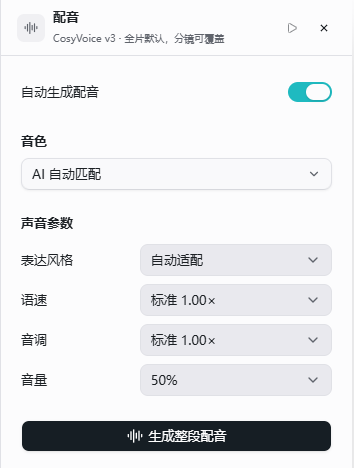
Voices, speech parameters and voice samples
Entry: Voiceover and voice controls in Video Studio.
- Select a configured speech service and an available voice. Prepare the narration text.
- Adjust the supported style, speed, pitch and volume controls, then listen to a short preview. Available parameters depend on the service and voice.
- When using your own authorized voice sample, upload it through the sample workflow and inspect its processing and availability state.
- Generate the narration and insert the actual audio into the timeline. Check pronunciation, timing and level against the video.
Completion check: A playable audio result exists and is placed correctly. A saved sample or selected voice alone does not mean generation has completed.
Create and use a digital human
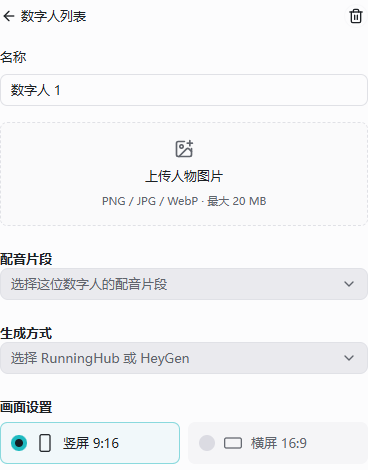
- Open the digital-human workflow and prepare an authorized portrait and narration audio.
- Select the configured RunningHub or HeyGen route as available, then review aspect ratio and motion settings.
- Submit generation and inspect task status. Read failures before retrying to avoid duplicate submissions.
- Preview the completed video, check face framing and lip synchronization, then insert it into the timeline.
Completion check: The actual generated video plays and appears in the intended scene. A configuration preview is not a completed external generation task.
Video enhancement and edit history
- Select the intended video segment and inspect the available enhancement or transcript actions.
- Review the proposed result before applying changes. Compare the preview with the original media and timing.
- Use the available restore, undo and redo controls to inspect alternatives. Check the saved project history after important edits.
- Play the revised segment and render again when the delivered output needs the change.
Completion check: The enhancement and its edit history are understandable, and the saved project and final render reflect the accepted version.
Voice control and media processing
- Use the available real-time voice entry for the current conversation, checking microphone and system permissions first.
- State the task and review resulting instructions and tool actions in the same project.
- For transcription, translation, speech or other media processing, select a configured service and inspect the actual job status and output file.
Completion check: Voice input affects the intended conversation and requested media outputs can be opened. Real-time task control and asynchronous media processing are separate workflows.
Next: continue reading, or browse the complete feature index.